
Apple Intelligence handles three functions: writing assistance, image generation, and enhanced Siri capabilities. The system runs on-device processing for privacy. Apple Intelligence requires approximately 4GB of free space to download and operate effectively.
You’ll find it in Mail, composing smart replies; in Photos, generating custom memory movies; and in Notes, summarizing lengthy documents.
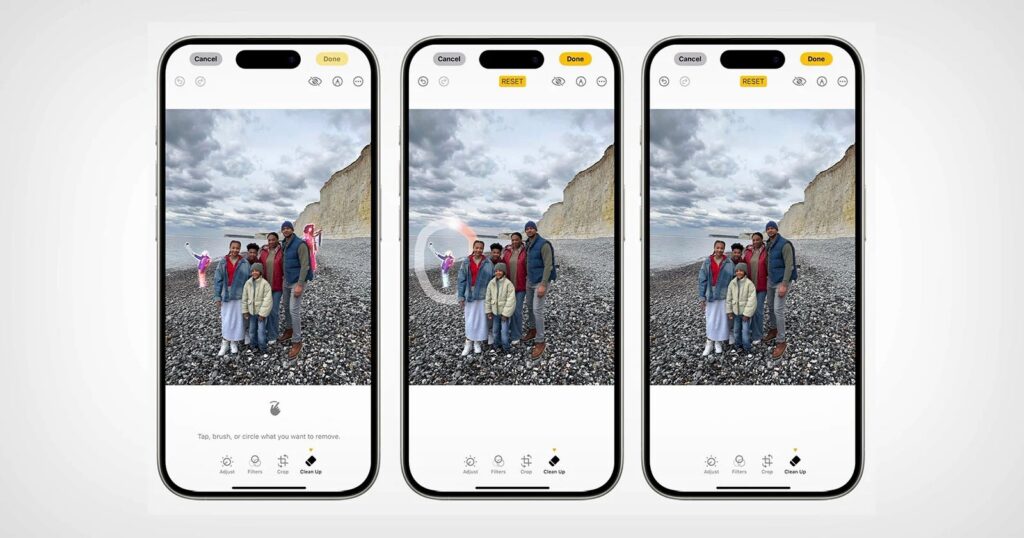
Table of Contents
Setting up Apple Intelligence requires specific hardware: iPhone 15 Pro models or newer, iPads with M1 chips or later, and Macs with Apple silicon. The system is activated in Settings, where you’ll join a waitlist before gaining access.
Enabling Apple Intelligence on Your Device
Navigate to Settings on your compatible iPhone or iPad. Tap Apple Intelligence & Siri. Select the option to join the waitlist if features aren’t immediately available. Apple processes waitlist requests within hours, though timing varies by region and demand.
Once approved, you’ll receive a notification. Return to Apple Intelligence & Siri in Settings. Toggle the feature on. The system downloads necessary components in the background, which takes 5-10 minutes on average with stable Wi-Fi.

Set your device language to U.S. English. Future updates will expand language support in line with Apple’s machine learning research roadmap. Your Apple AI setup is complete when the interface displays active features.
Apple Intelligence In Everyday Tasks
Writing Tools appear across apps like Mail, Notes, and Messages. Select text in any compatible app to access these features. The interface displays options for rewriting, proofreading, or summarizing content.
Text rewriting offers multiple tones: professional, friendly, and or concise. Tap the rewrite icon, choose your preferred style, and review the suggestion.
Apple Intelligence transforms text composition across every app. Access these tools by selecting text and tapping the Apple Intelligence icon. The system rewrites sentences for clarity, adjusts tone from professional to casual, and corrects grammar without third-party apps.
Smart Reply generates contextually appropriate responses in Mail and Messages. The system analyzes incoming messages and offers three response options that match your typical communication style.
This ChatGPT integration enhances Siri’s capabilities when handling complex requests that require external knowledge bases.
Visual Applications
Genmoji generates custom emoji from text descriptions. Type “cowboy frog” and the AI creates a unique emoji matching your vision.

The Image Playground app further expands creative possibilities. Describe any scene, “a robot playing piano in space,” and the system generates artwork in three styles: Animation, Illustration, or Sketch.
Effective Communication with AI
Apple Intelligence responds best to clear, direct requests. Describe what you want using specific terms rather than vague concepts. When using Image Playground, include concrete details about subjects, colors, and mood.
Structure requests logically. Start with the main action, then add modifiers. Instead of “make it better,” specify “shorten this to three paragraphs” or “adjust tone to be more formal.” The system interprets precise instructions more accurately than general directives.
Test different phrasing if results miss your intent. Apple’s machine learning research shows that iterative refinement produces better outcomes than expecting perfection from a single prompt. Adjust one element at a time to understand what changes improve results.
Using Apple AI in the Classroom
Writing Tools help students refine essays and reports through grammar checking and tone adjustment. Teachers provide feedback more efficiently by using summarization to review lengthy assignments quickly.
Students with learning differences access text through Live Audio transcription during lectures. The feature converts spoken words into written notes in real-time. Visual learners engage with Image Playground to create diagrams and concept illustrations that reinforce lesson comprehension.
Apple Intelligence iPhone 15 users access these tools directly within classroom apps. Students draft presentations using AI-suggested content organization. Note-taking apps integrate smart summaries that highlight key concepts from recorded discussions.
Privacy protections matter in educational contexts. All student data remains on-device during AI processing. Schools avoid cloud storage concerns while maintaining FERPA compliance standards.
Language learners benefit from multilingual translation capabilities built into system apps. Students read foreign language texts with instant translation overlays. Writing assignments in second languages receive grammar suggestions that support skill development.
Notification Management
Summary notifications group related alerts into digestible chunks. Access this through Settings > Notifications > Summarize Previews.
Select which apps receive summarization. Priority messages appear at the top of your stack based on content analysis.
Apple AI vs. ChatGPT: A Feature Comparison
Apple Intelligence and ChatGPT serve different purposes in your workflow. Apple’s system integrates directly into your device’s core functions, rewriting emails, summarizing notifications, and generating Smart Reply suggestions for messages. ChatGPT excels at open-ended conversations and creative tasks, handling complex queries that require nuanced responses.
The processing location creates the fundamental difference. Apple Intelligence runs on-device primarily, keeping your data private and responses instant. ChatGPT processes requests through cloud servers, enabling access to broader knowledge but requiring internet connectivity.
Task specialization matters. Use Apple Intelligence for quick edits, message replies, and photo searches within your existing apps. Turn to ChatGPT for detailed explanations, brainstorming sessions, or generating longer content pieces. Apple’s approach prioritizes practical assistance over conversational depth, focusing on features that enhance daily iPhone operations.
ChatGPT integration through Siri bridges this gap. You access both systems from one interface. Apple Intelligence handles routine tasks, while ChatGPT tackles specialized requests requiring extensive knowledge. This hybrid approach delivers immediate results for simple needs and comprehensive answers for complex questions.
Strengths and Limitations of Apple AI
Apple Intelligence excels in privacy-first processing and system-wide integration. The on-device architecture keeps your data local. Apple’s machine learning research demonstrates how neural engines process requests without cloud uploads.
Features like Clean Up Photos work entirely offline, removing unwanted objects from images without sending them to external servers.
The system shines in contextual awareness. Siri now understands follow-up questions without repeating context. Writing Tools adapts tone based on your recipient, formal for work emails, casual for friends. The notification summaries group related alerts intelligently.
However, limitations exist. Apple Intelligence requires an A17 Pro chip or later, excluding older devices from the ecosystem. Language support remains English-only at launch, narrowing global accessibility. Brookings research notes that this creates adoption barriers in non-English markets.
Processing speed lags cloud-based competitors. Complex tasks like generating multi-paragraph summaries take longer than ChatGPT’s cloud processing.
The system also lacks multimodal capabilities. You cannot upload images for analysis like you can with other AI tools.
The trade-off centers on control versus capability. You gain privacy and seamless device integration. You sacrifice cutting-edge features available in standalone AI platforms.
Common Misconceptions About Apple AI
Many users believe Apple Intelligence requires constant internet access. This myth stems from confusion about cloud-based AI systems. Apple’s framework processes most tasks locally on your device, and the Neural Engine handles calculations without transmitting data to external servers, according to Apple’s machine learning research.
Another common misunderstanding: you need technical expertise to activate features. In reality, how to use Apple Intelligence involves straightforward settings adjustments in iOS 18.1 and later.
Navigate to Settings > Apple Intelligence & Siri to enable system-wide capabilities. The interface mirrors standard iOS controls; no coding knowledge is required.
Some assume Apple Intelligence replaces Siri entirely. The systems work together. Siri now leverages Apple Intelligence for contextual understanding while maintaining its voice-assistant functions. Research from AIX confirms this hybrid approach strengthens both capabilities rather than eliminating either.
The belief that Apple Intelligence lacks advanced features compared to cloud AI persists. While true for some generative tasks, the system excels at personalized recommendations and privacy-sensitive operations. O
n-device processing delivers faster response times for most daily tasks, and email summarization completes in seconds versus cloud-dependent delays.
Is Apple AI based on ChatGPT?
Apple Intelligence runs on proprietary foundation models built in-house. Apple does not license ChatGPT’s underlying technology. Instead, it developed custom language and diffusion models optimized for on-device performance.
The system uses Apple’s own neural engines integrated into A17 Pro and M-series chips. These process requests locally whenever possible. Apple’s research publications detail their work on efficient transformer architectures and federated learning techniques.
However, Apple Intelligence integrates ChatGPT as an optional feature. When you ask Siri complex questions beyond its capabilities, it offers to consult ChatGPT—with your permission first. This partnership extends functionality without compromising the core architecture.
Apple’s approach differs fundamentally. ChatGPT operates primarily in the cloud. Apple Intelligence prioritizes on-device processing to protect privacy. Your data stays on your iPhone, iPad, or Mac for most tasks.
Leave a Reply